Beat to Beat.
Peer to Peer.
One shared music library for your whole DJ crew.
Songs go straight from computer to computer, and every track is checked for the CDJs before the gig.
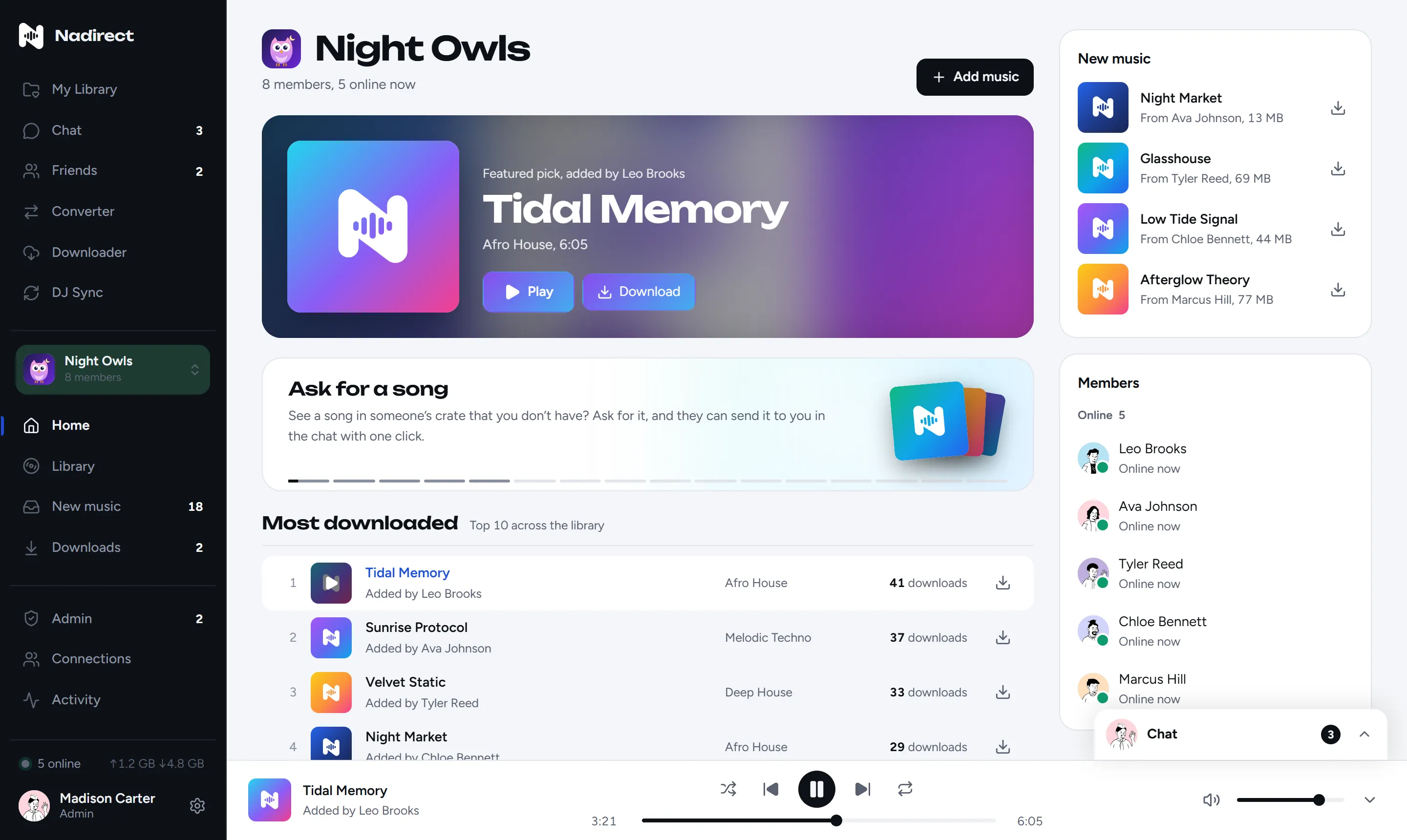
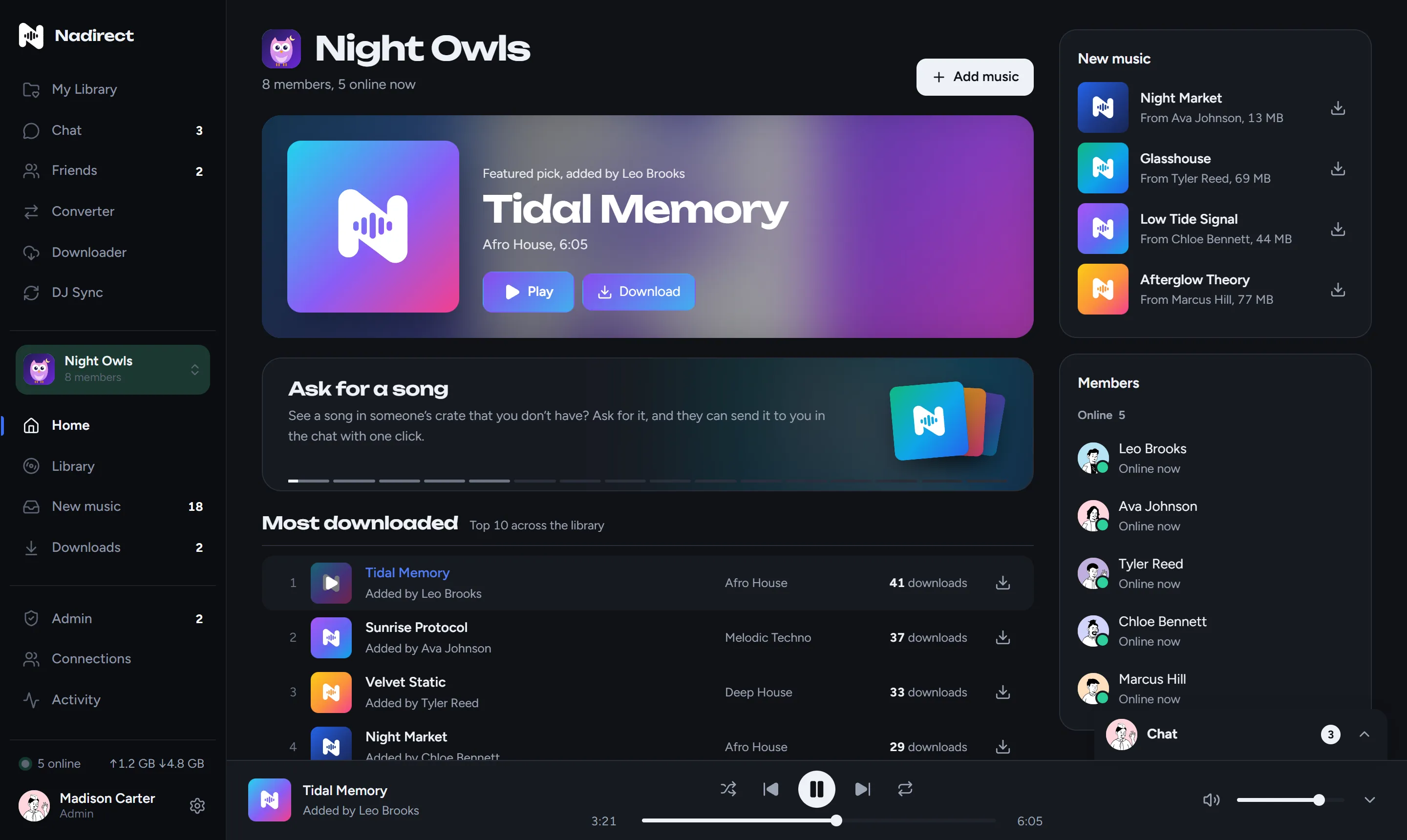
Every genre. Everyone’s music.
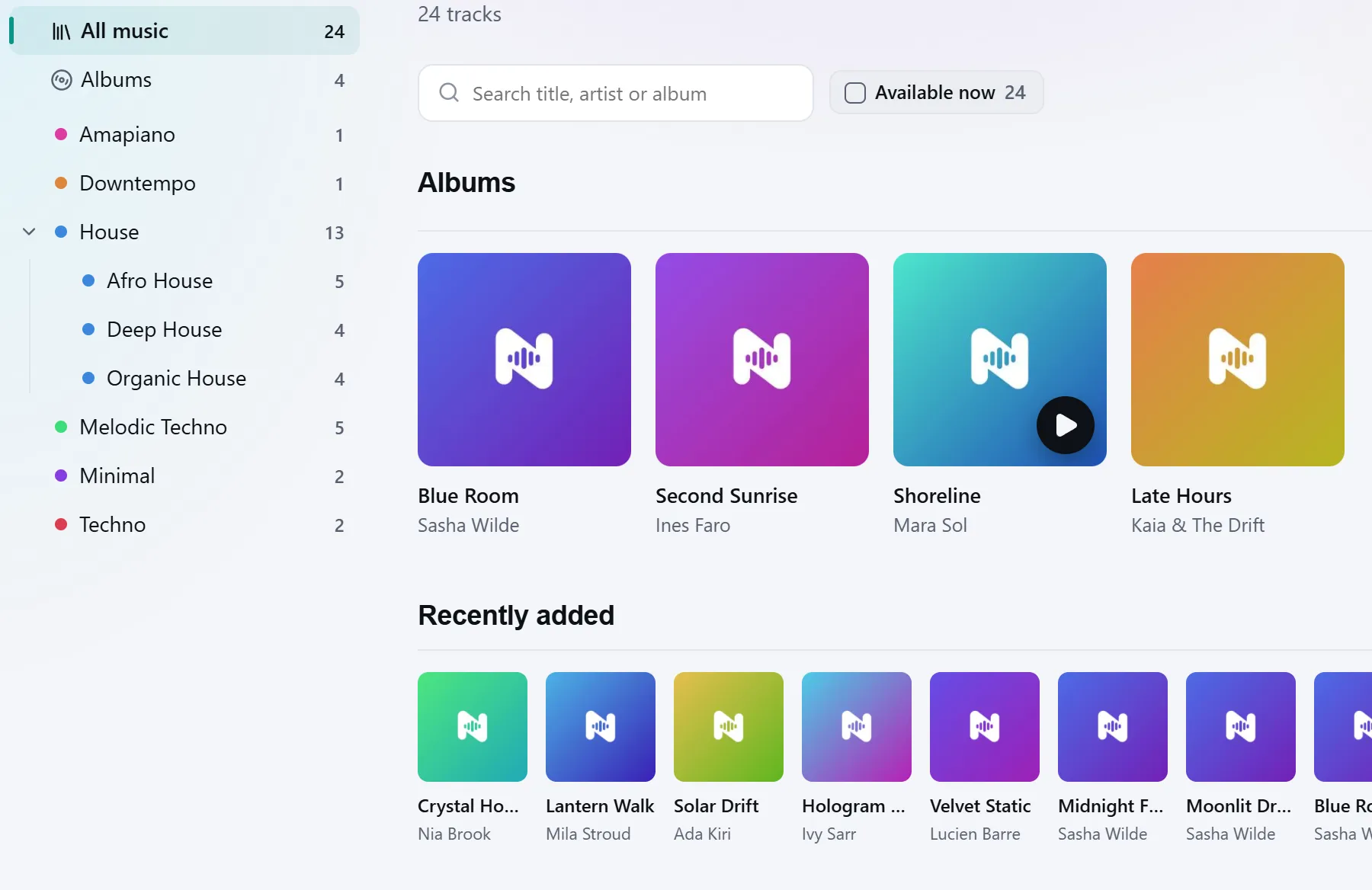
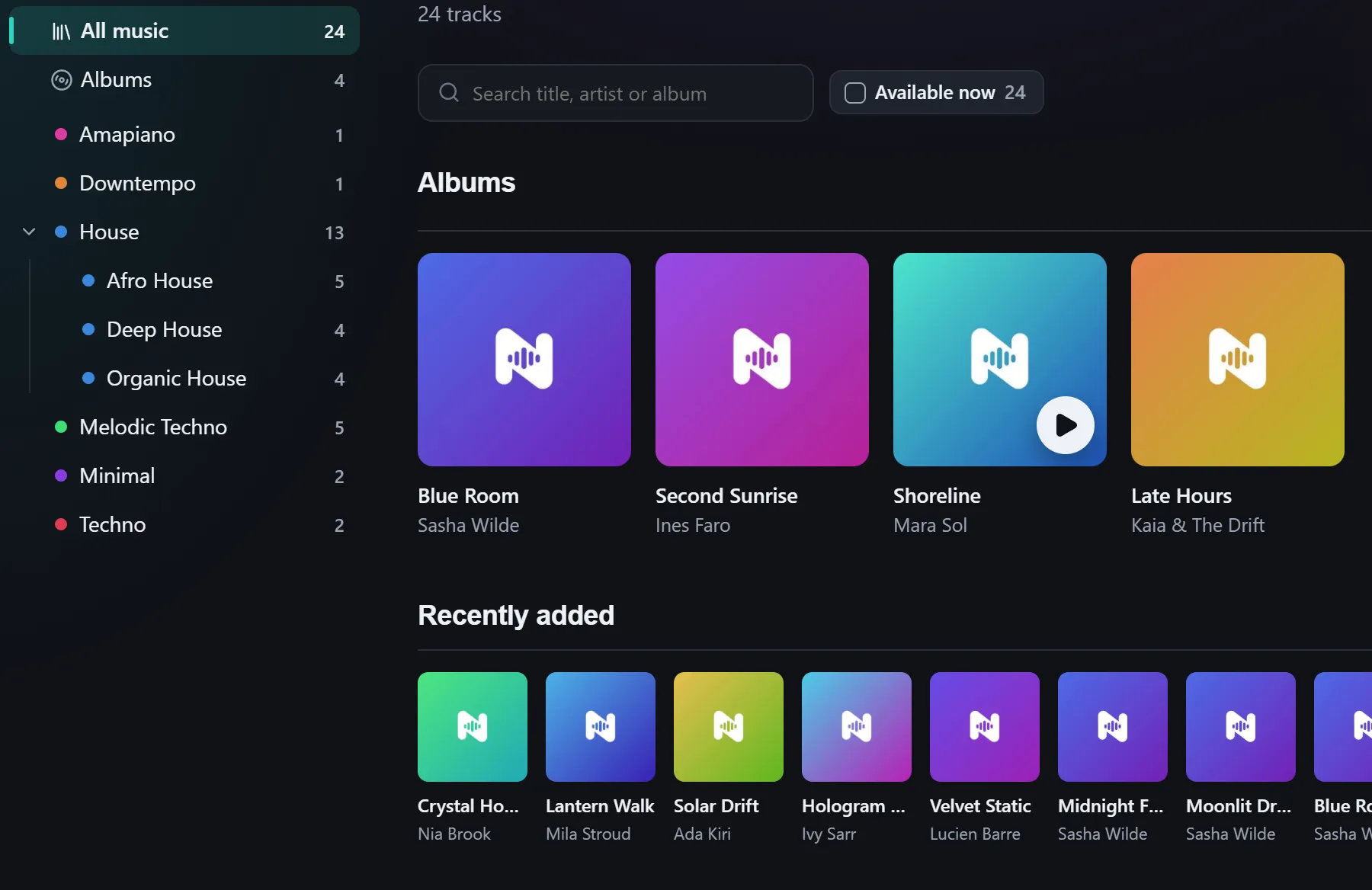
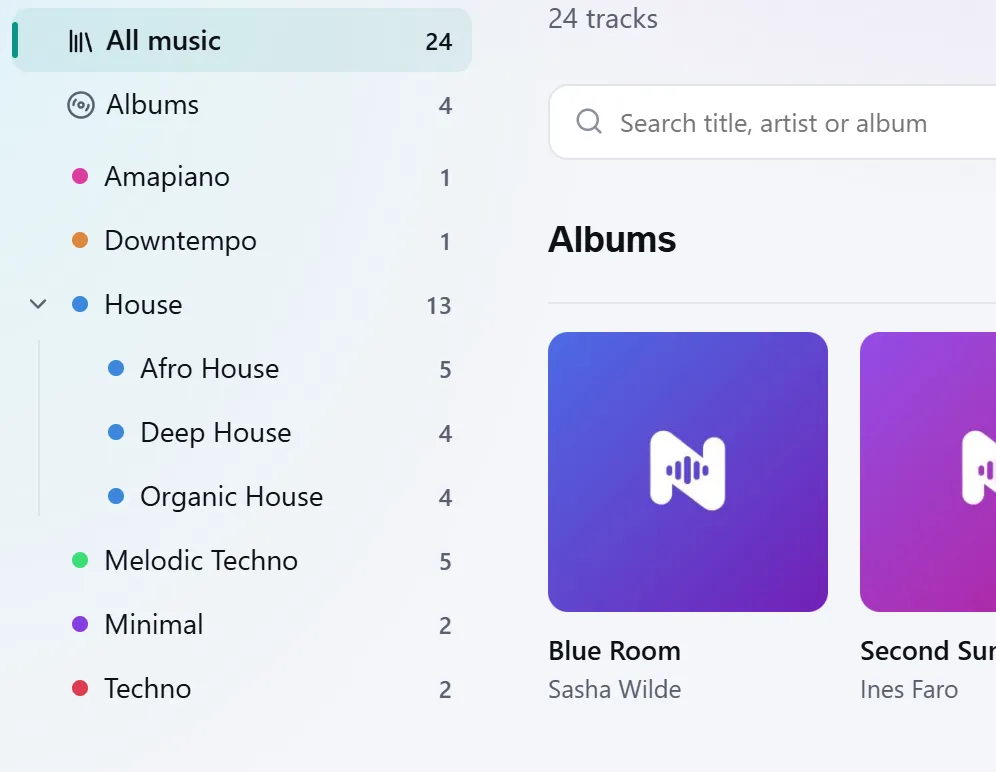
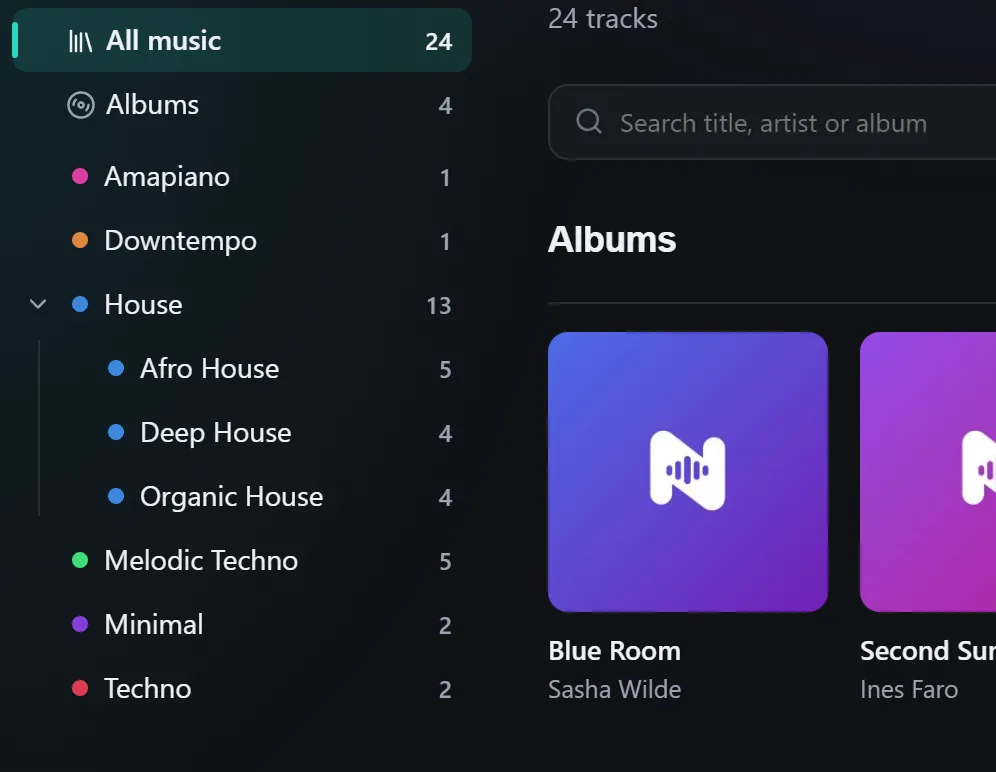
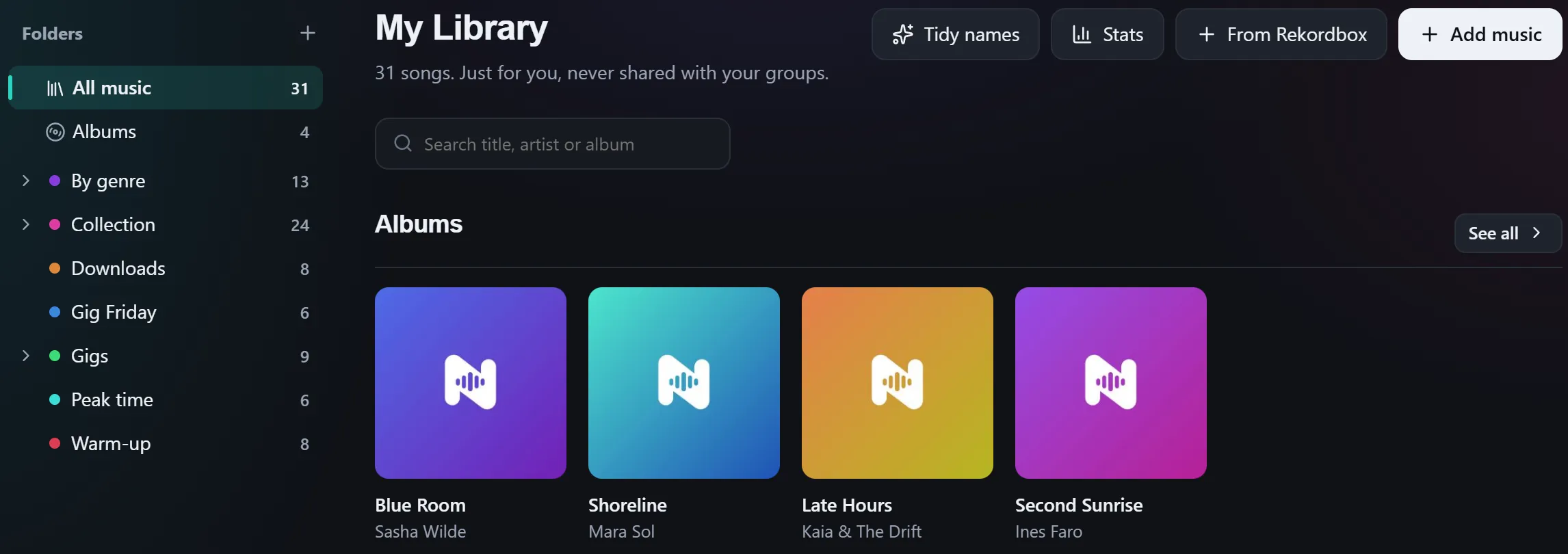
Your crew adds music into folders the admin sets up, nested as deep as you like. Albums on top, then what’s new. Everyone sees who changed a song.
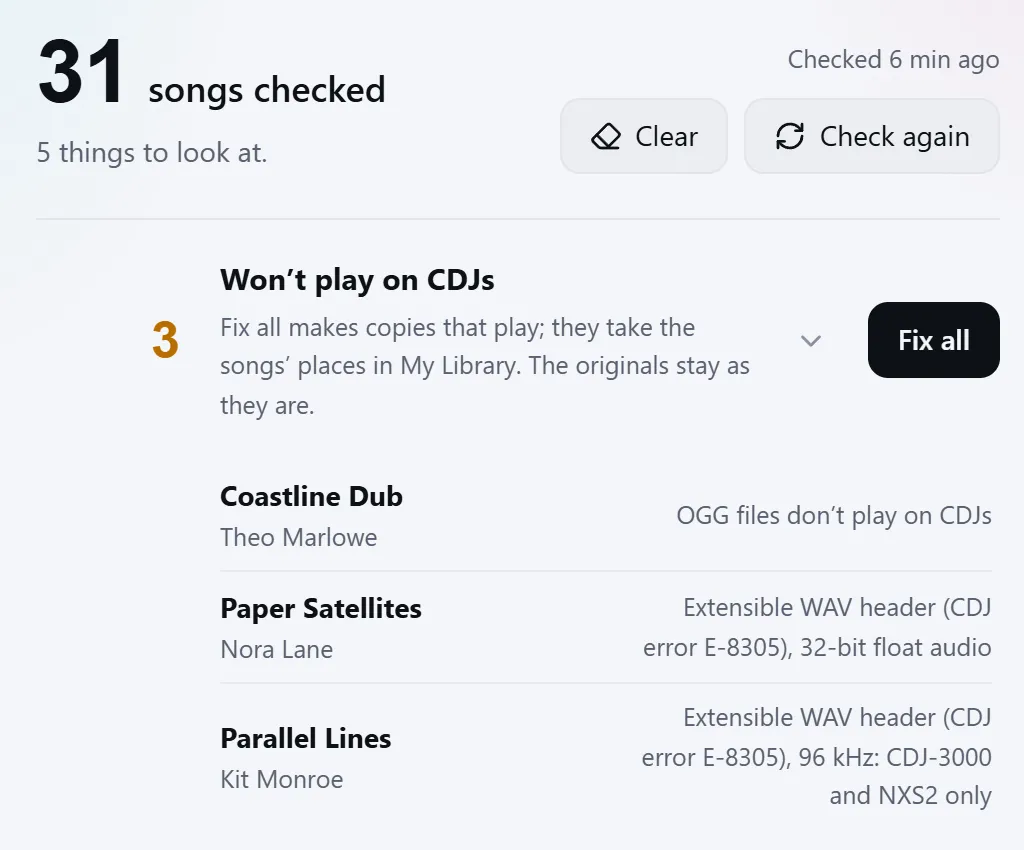
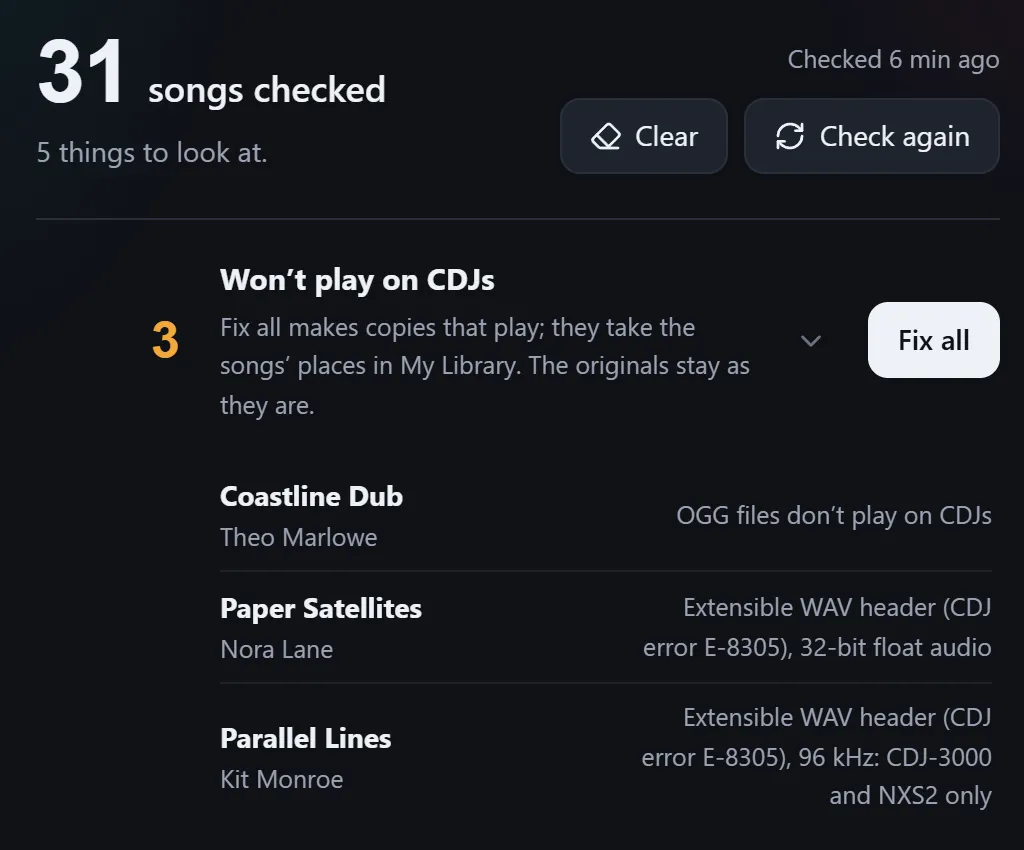
No more E‑8305 at 1 a.m.
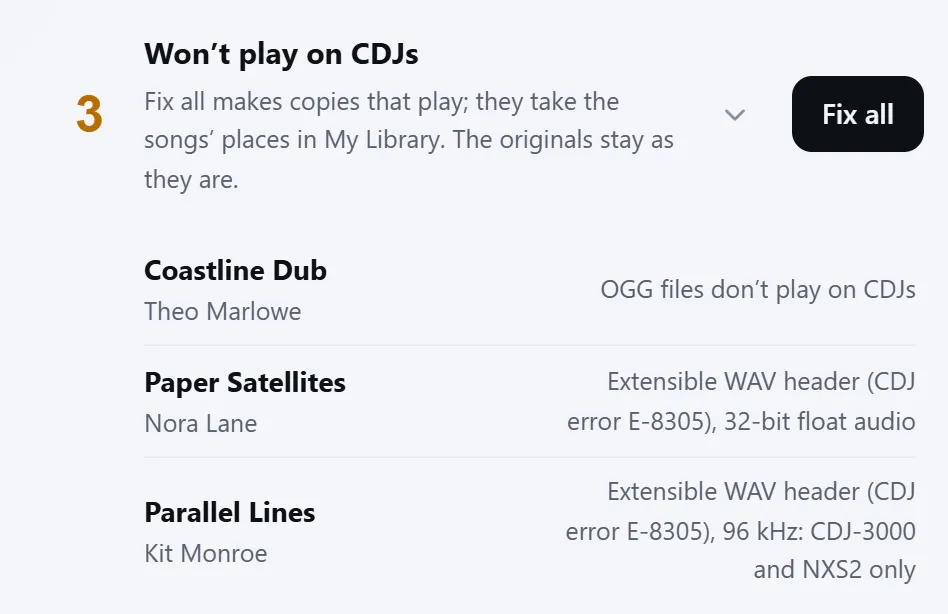
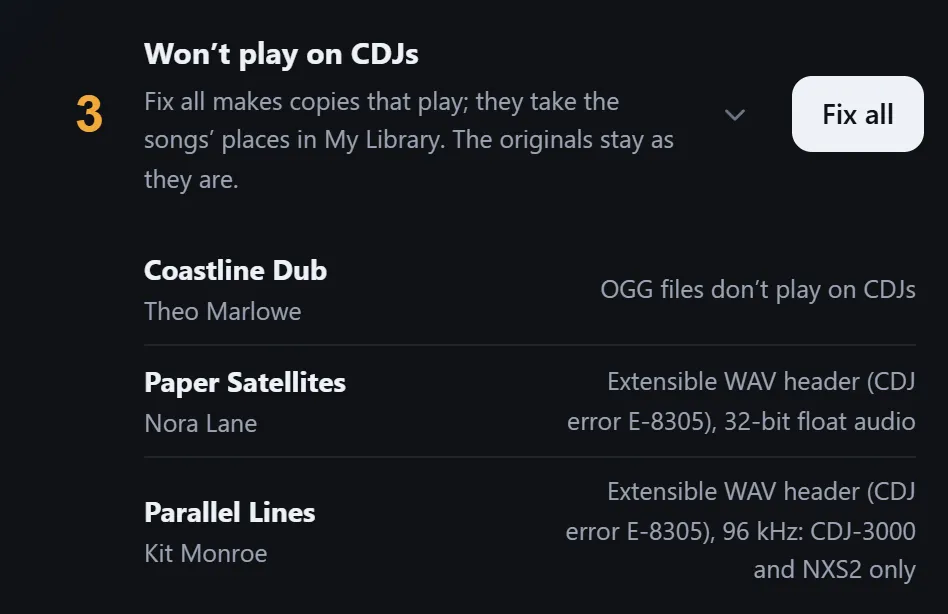
The Library check finds what won’t play on CDJs, duplicates, messy names and missing covers. One button fixes each, and nothing changes until you say so.
Straight to one person.
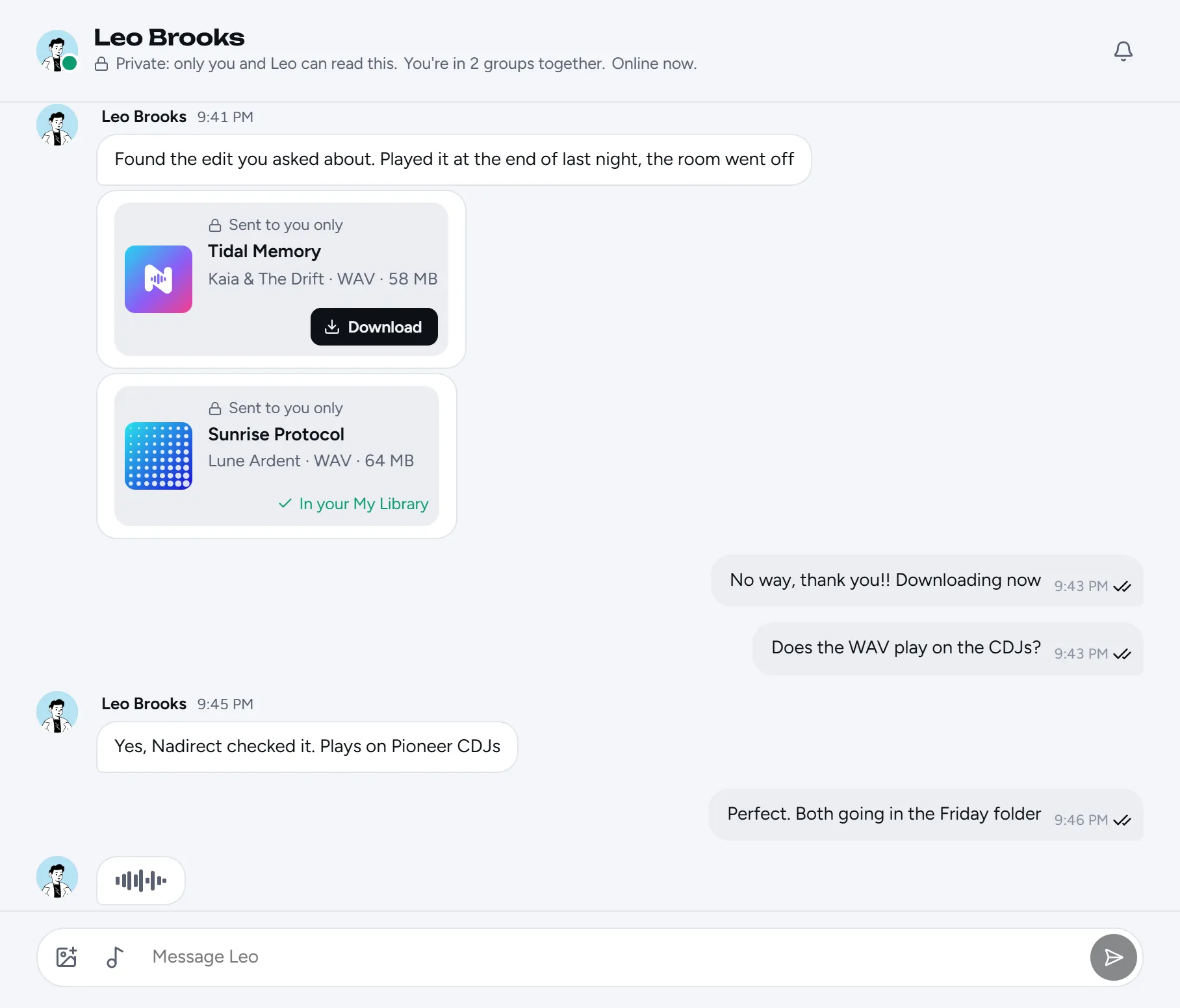
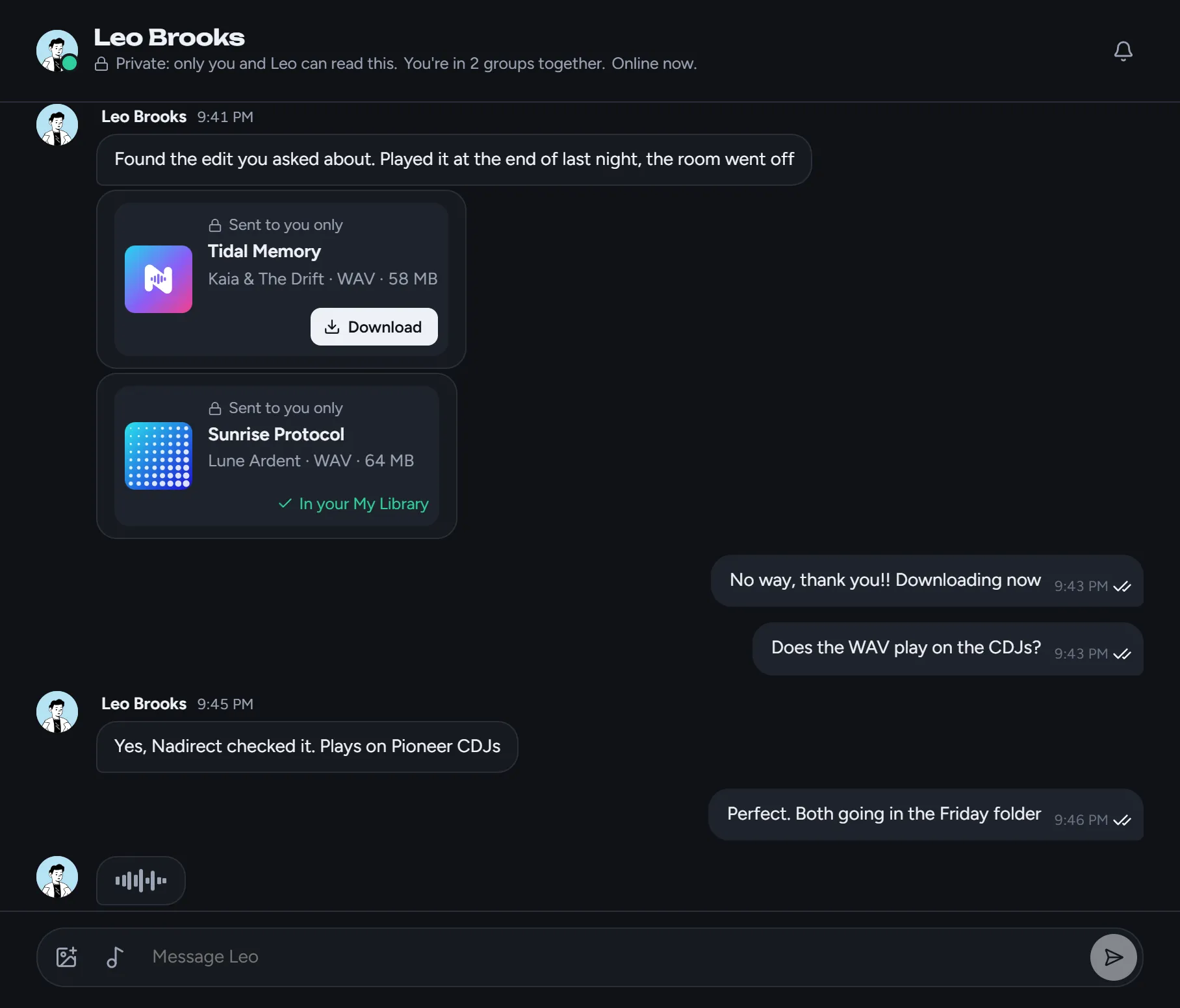
Right-click a song, or fifty, and choose Send to. They play it before downloading, and the cover comes along. See who’s online, who’s typing and who’s read it.
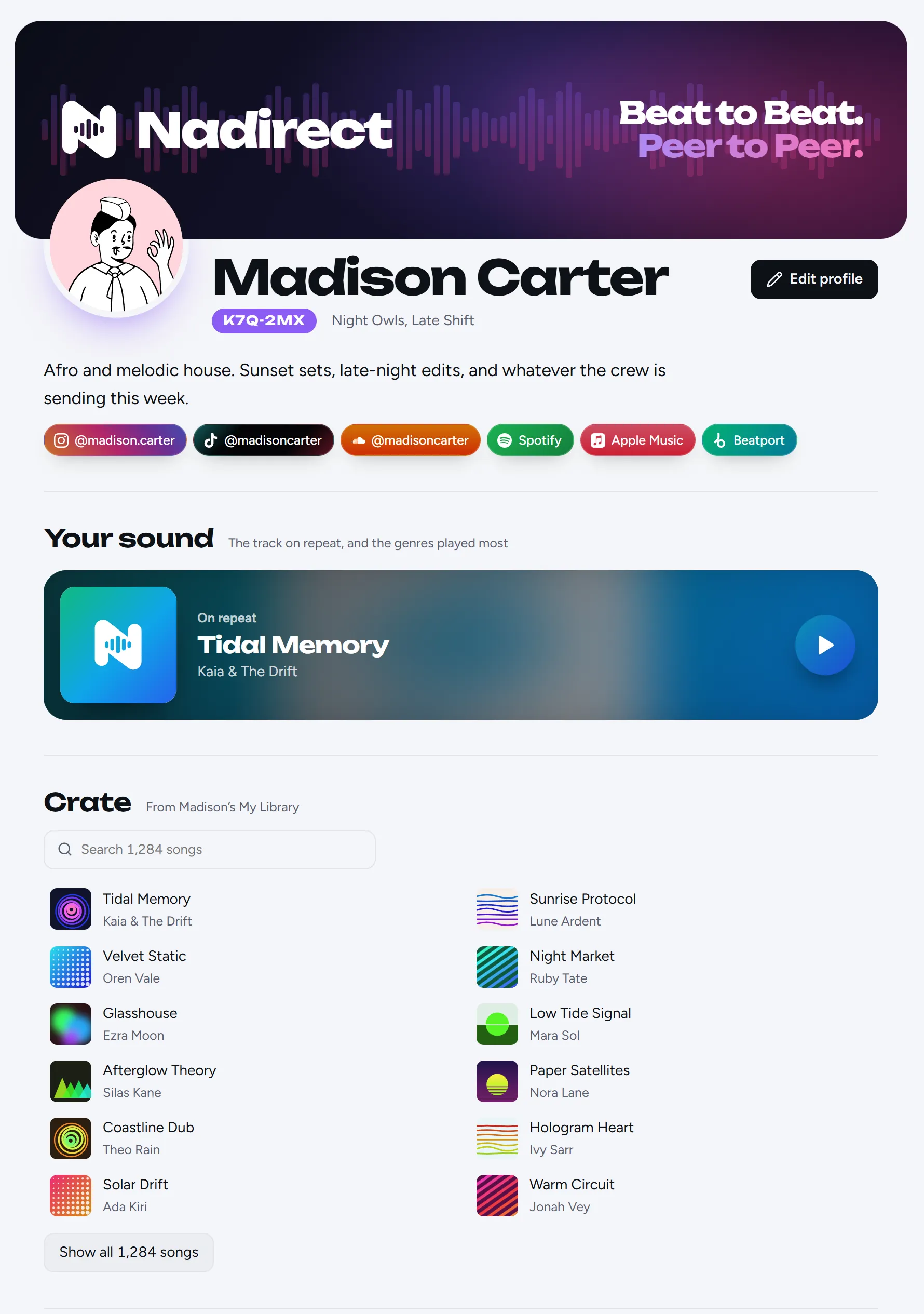
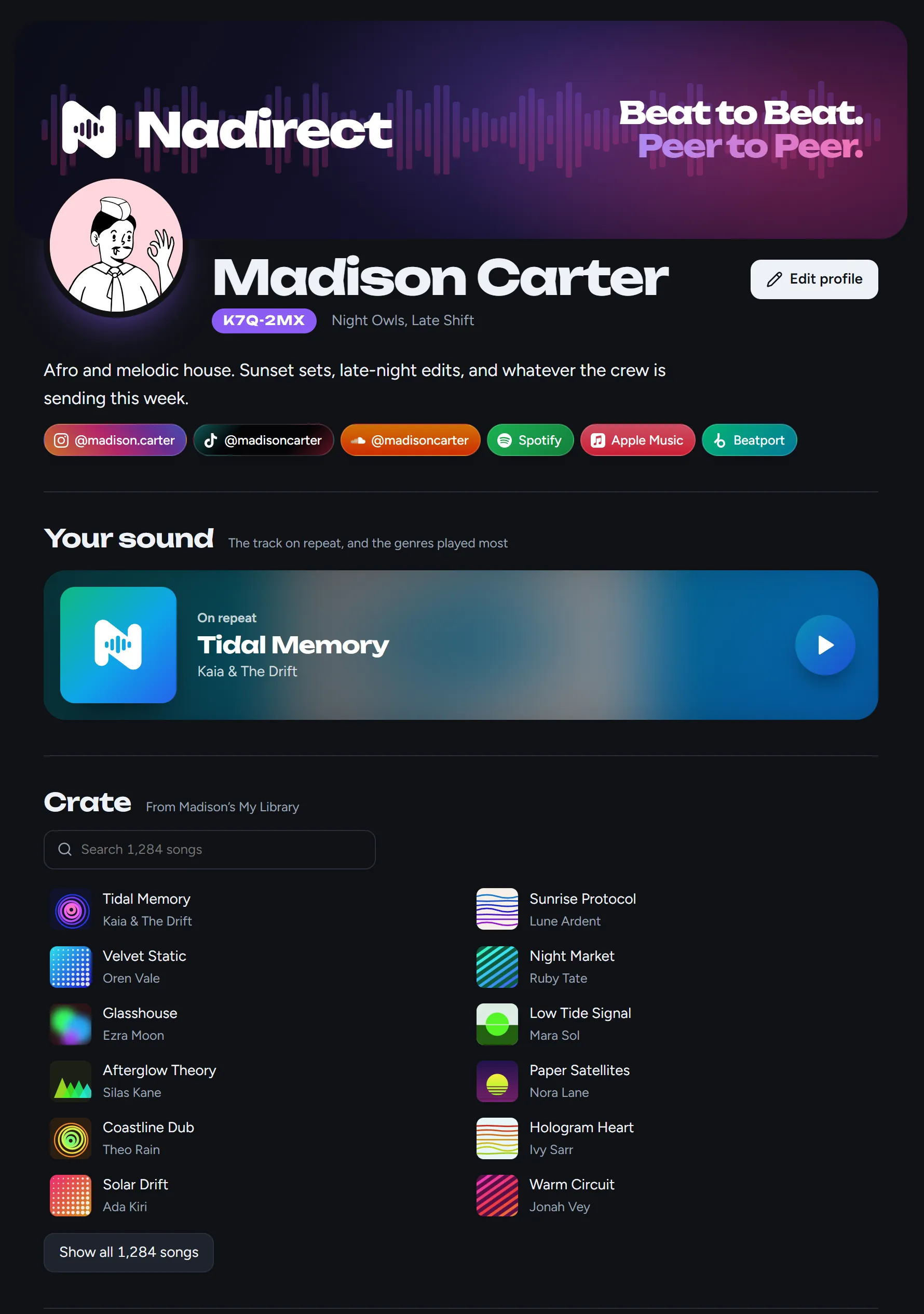
Your sound, your profile.
Your socials, the track you have on repeat and your crate, on one page. The files stay with you, and friends ask for a track straight from it.
Straight from
computer to computer.

Leo adds a song.
It lands in the right folder, and everyone in the crew sees it arrive.
Ava gets it straight from Leo.
From his computer to hers, encrypted the whole way.
Leo goes offline. The crew still gets it.
Everyone who has the song shares it. The more of you have it, the faster it spreads.
Keep what fits
your set.
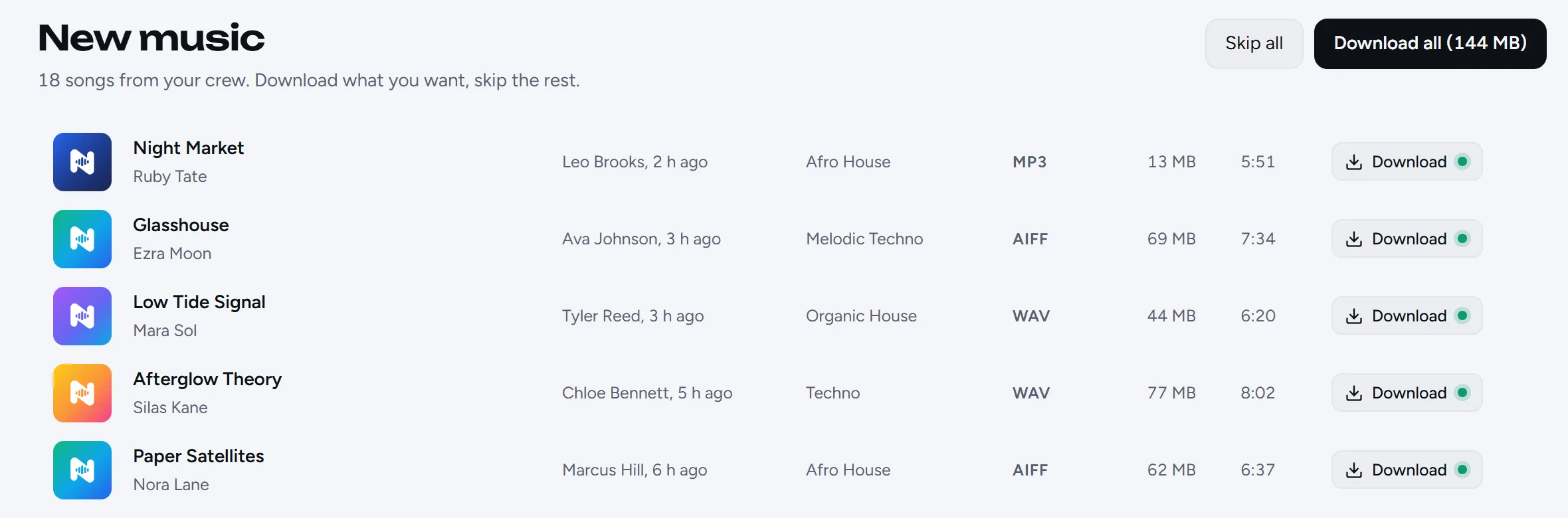
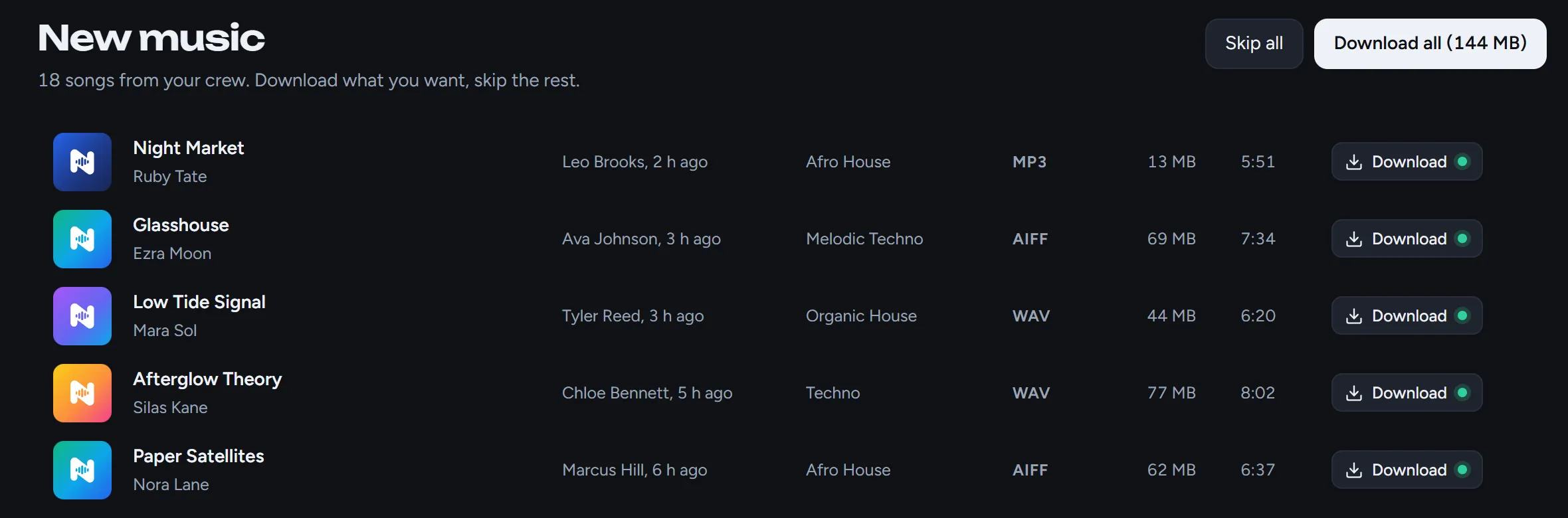
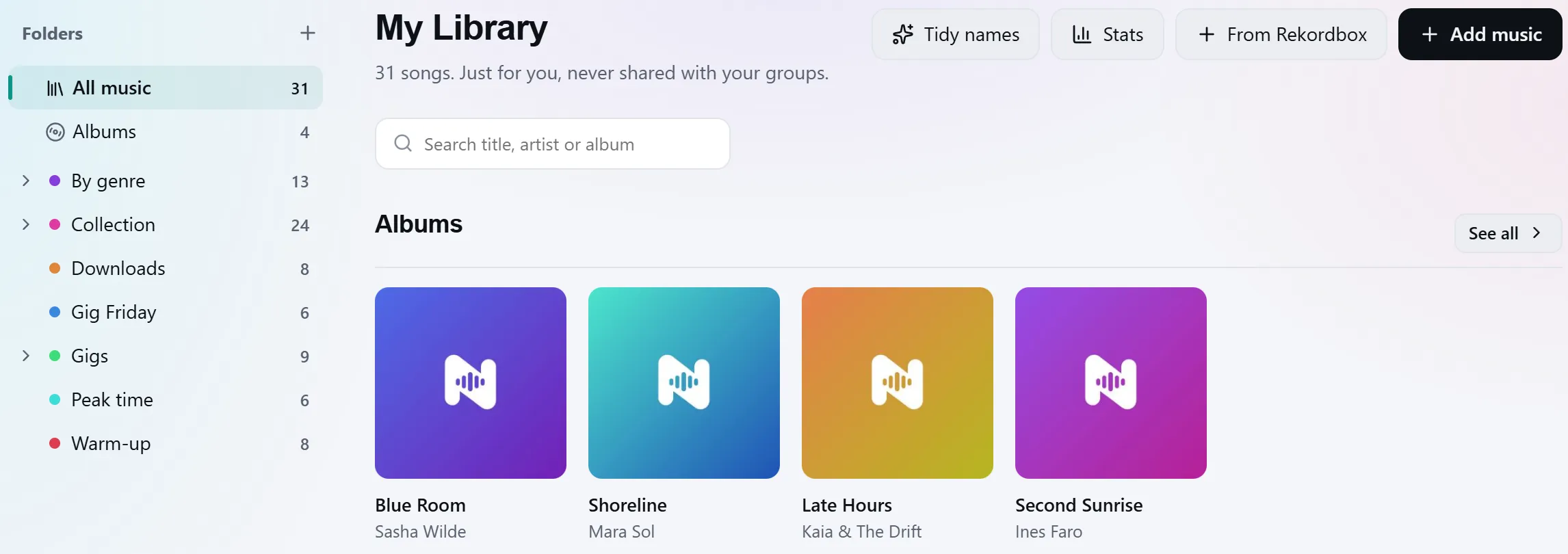
New music from your crew waits in one list. Download what you want, skip the rest, and file it into folders of your own; one song can sit in several, and your albums sit on top. My Library stays on your computer, and it’s the same on your second one when you sign in there.
 ✓ Saved✓ Saved✓ Saved
 +1+1+1
Straight into
your DJ app.
DJ Sync sends My Library into Rekordbox, Serato or Traktor as a Nadirect folder, with your folders. A sync sends only what changed, and your own library in the app is never touched: not a name, not a cue point.
Works with Rekordbox 6 and 7, Serato DJ Pro and Lite, and Traktor Pro 3 and 4. A short guide with pictures sets each one up, and Keep it in sync by itself does the rest. The other way round, From Rekordbox brings your playlists into My Library with their folders, and says which ones have new songs since.
Same song,
same moment.
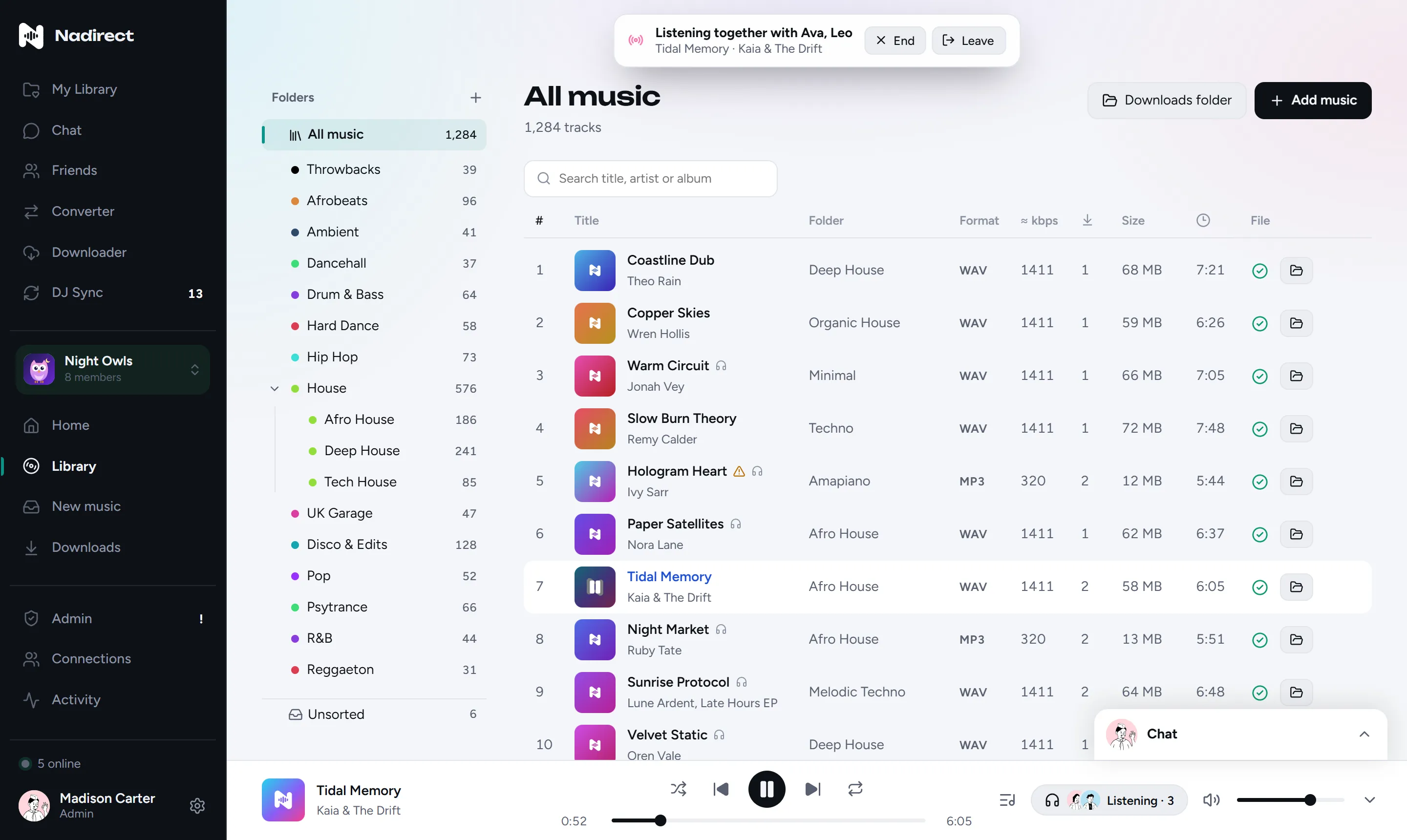
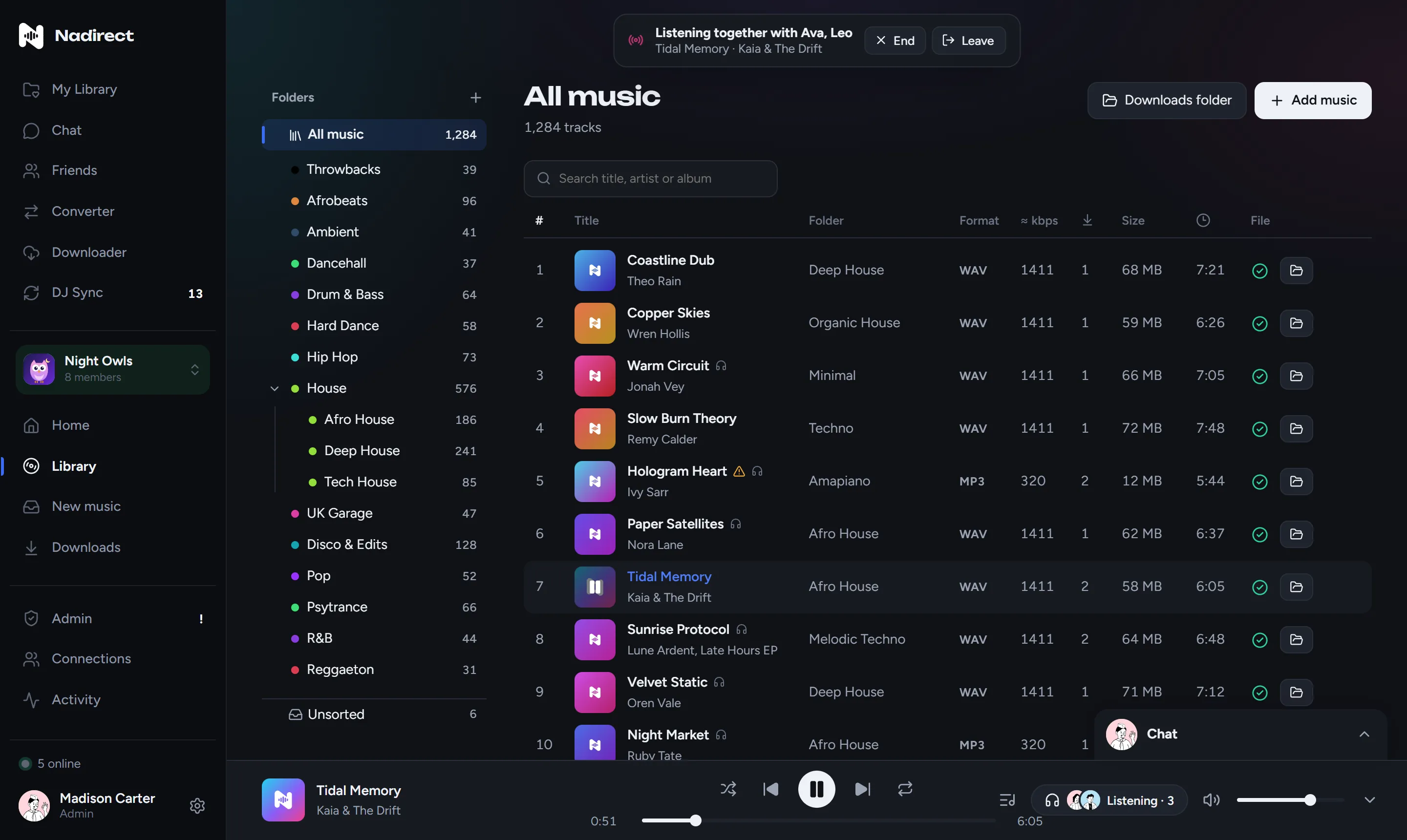
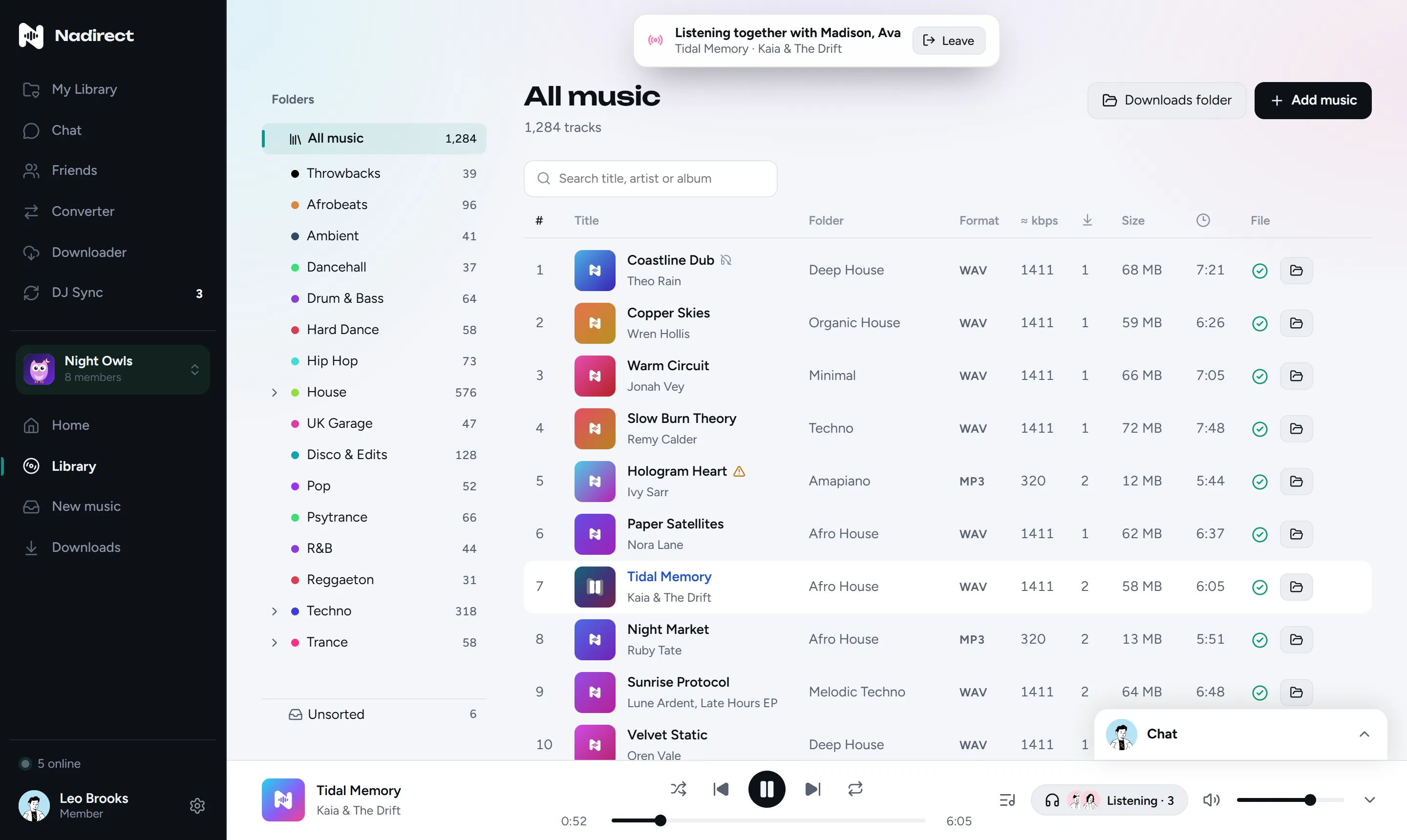
Press Listen together on the play bar and your crew hears the same song at the same moment, each on their own computer. Anyone in the group sees who’s listening and joins with one click.
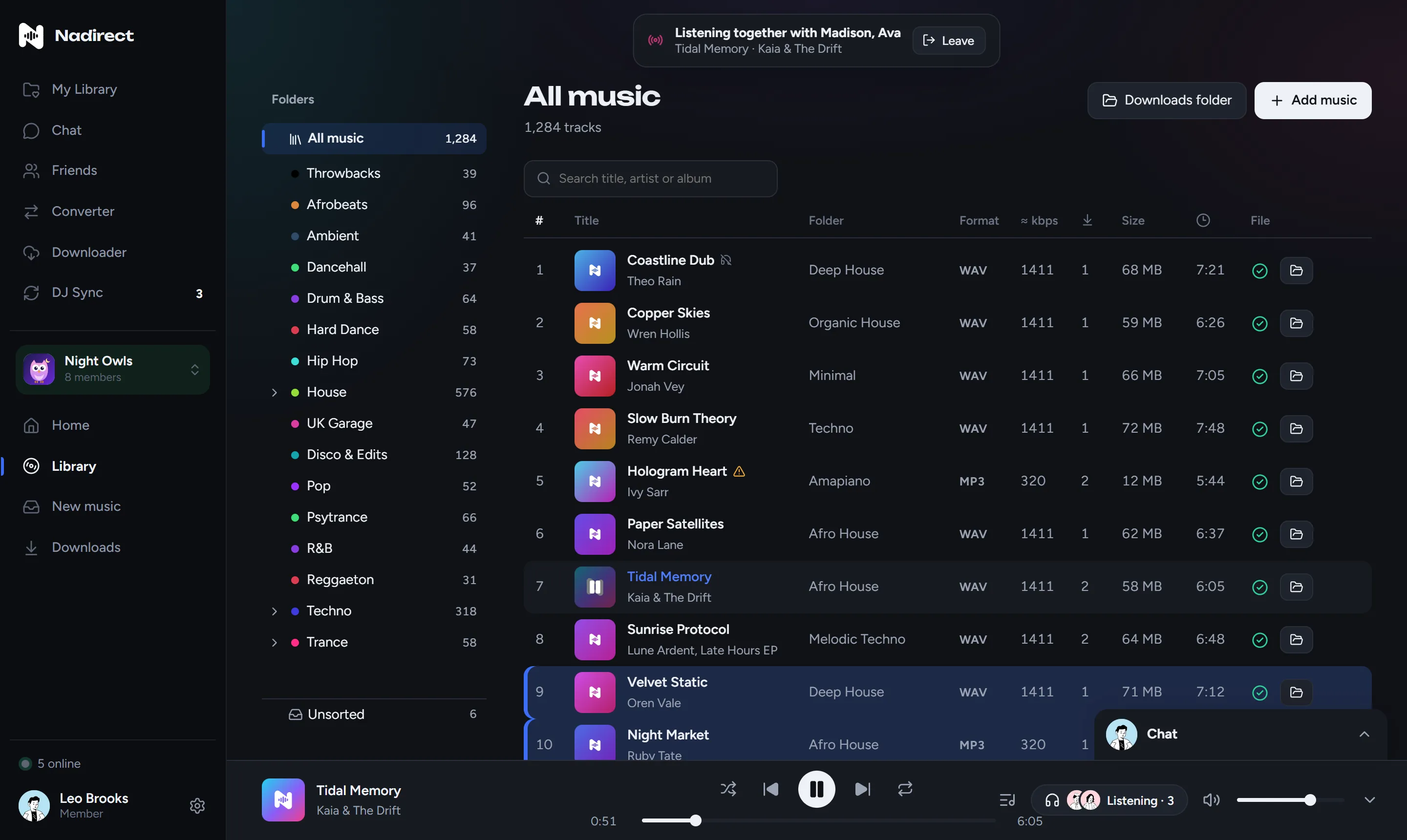
Anyone can play DJ
Play, pause, skip or jump ahead from any computer in the session. Everyone follows.
One queue for the crew
Add songs, drag them into a new order or take them out. Everyone sees it.
In step on every computer
The same song at the same second, each playing it on their own computer.
Yours again after
Leave the session and your own queue is back where you stopped.
The rest of the prep,
in the same place.
Downloader
Paste a link to a song or a whole playlist. It lands in My Library in the format you pick, with its cover and artist.
For your own use: only download music you have the right to.
Converter
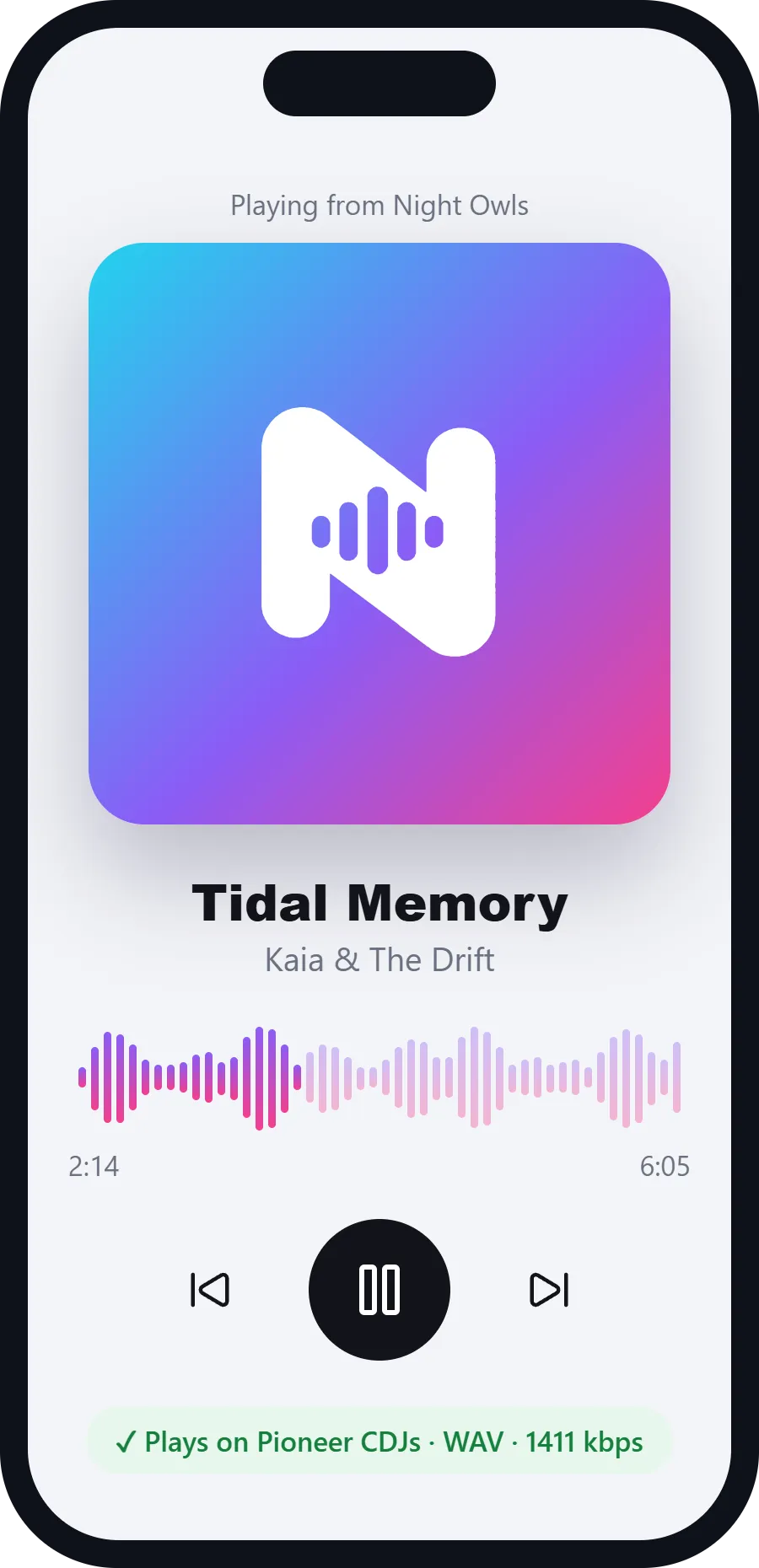
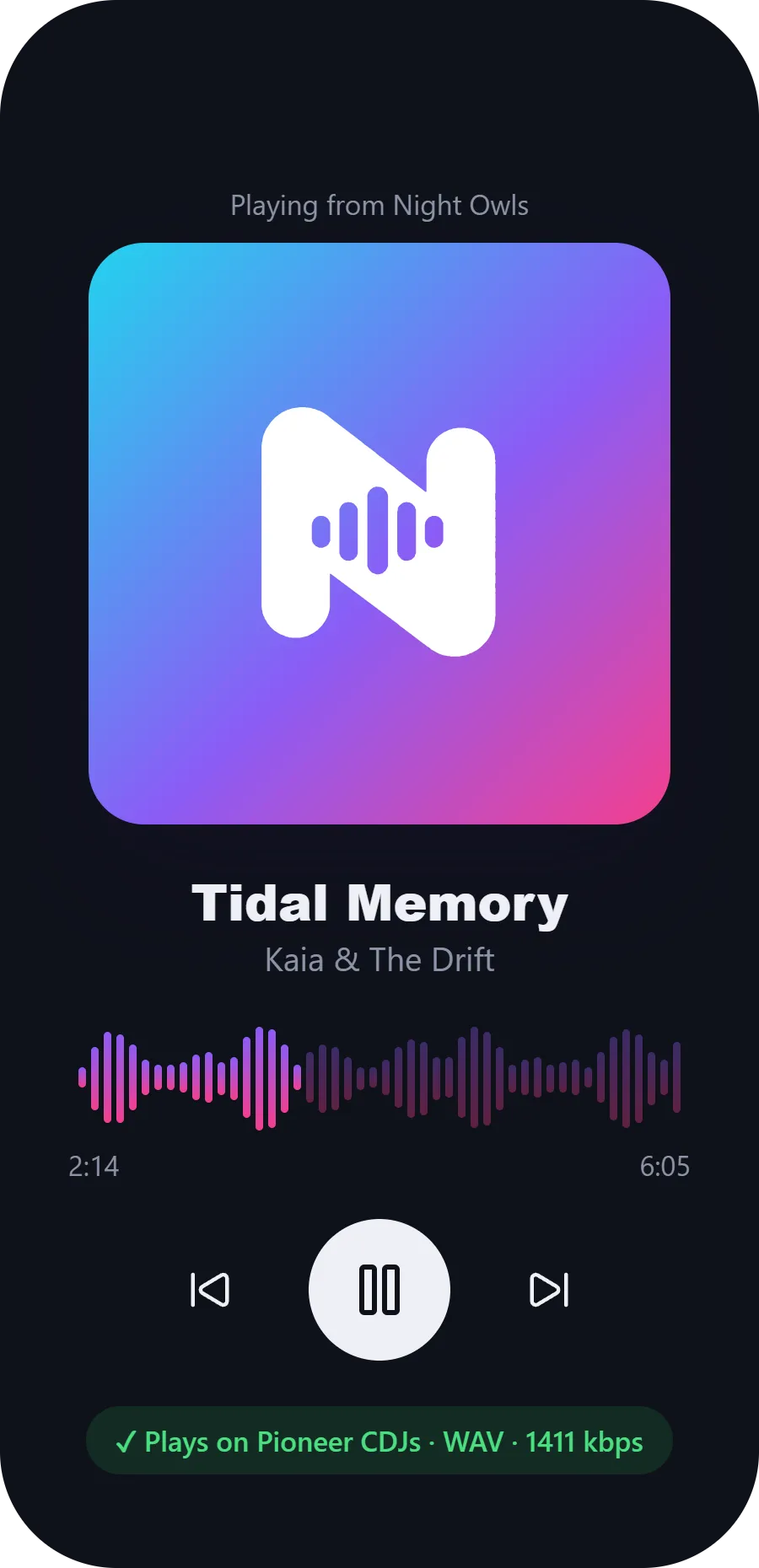
Turn songs into WAV, AIFF, FLAC or MP3 in one go, covers and details included. The copies go to their own folder, and every WAV plays on CDJs.
Tidy names
Clean names for the whole library: no “Official Video”, no track numbers, no shouting. The new names go into the files, and your cue points stay.
Your crew. In your pocket.
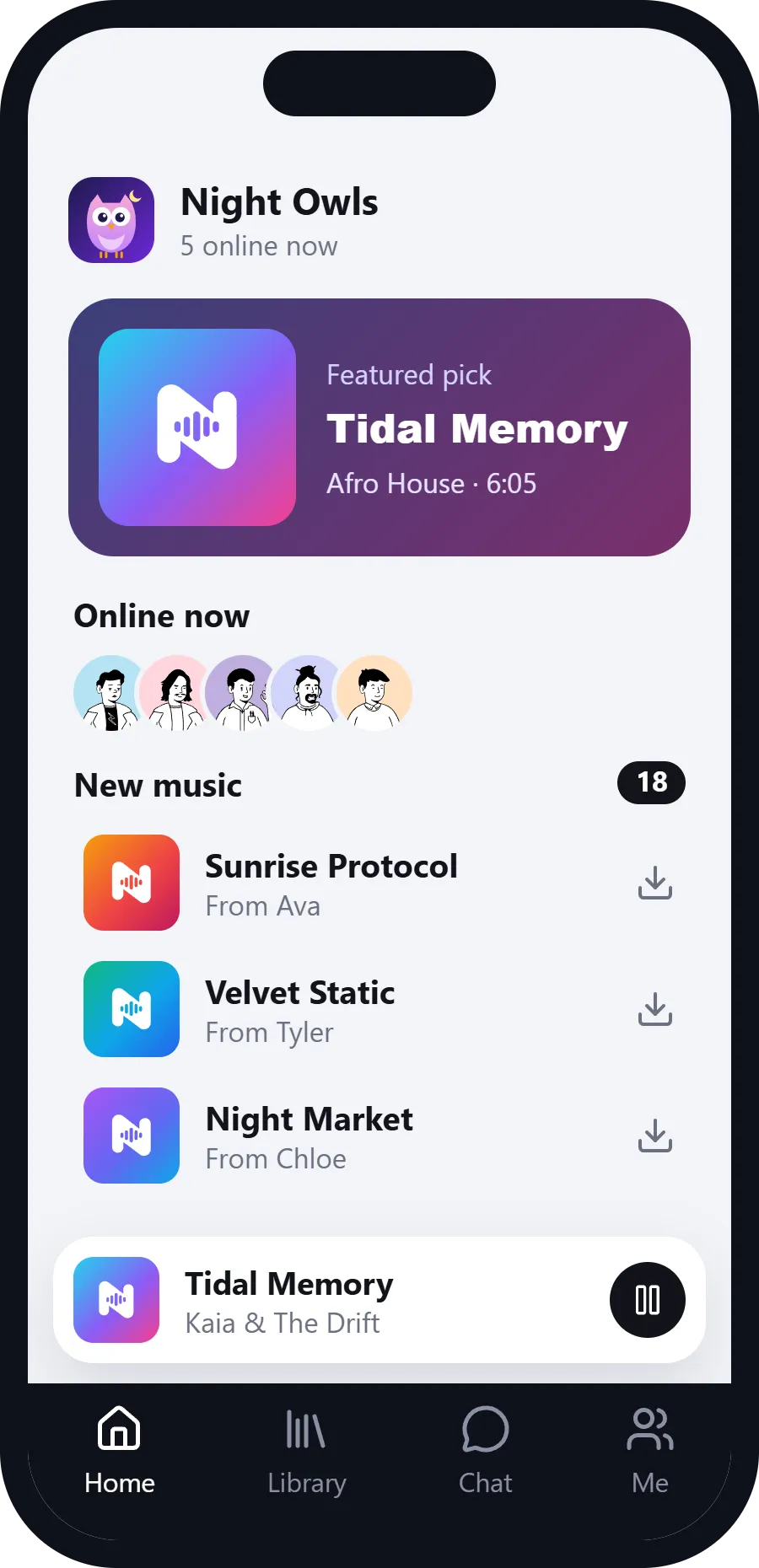
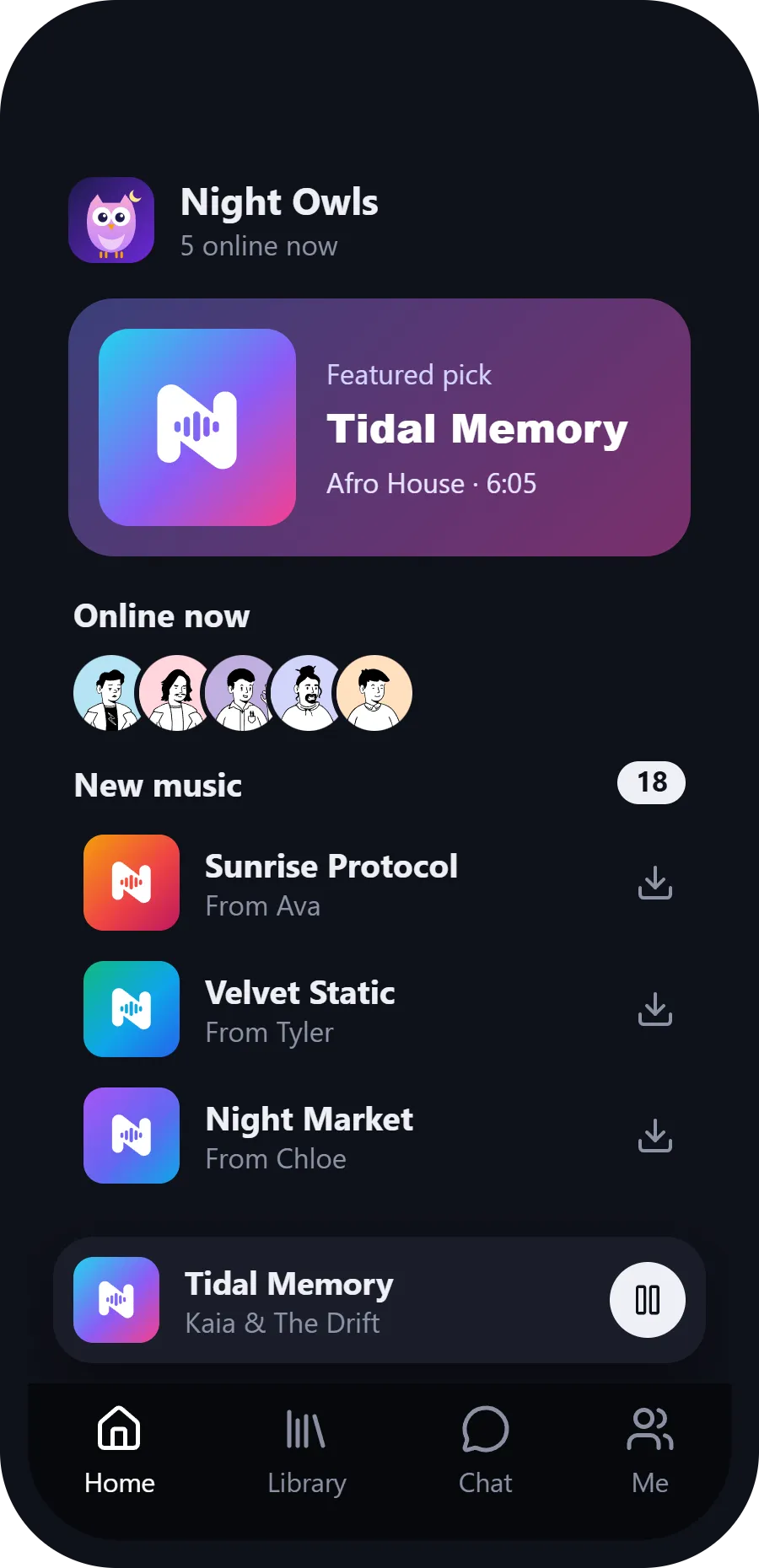
Nadirect for iPhone and Android is on its way: browse the library, play what's new and chat with your crew from anywhere.
Questions
Do my songs go through a server?
Normally no: they go from one member’s computer to another’s. When two computers can’t reach each other directly (both on phone hotspots, for example), the connection passes through our server instead, still encrypted end to end, so the server can’t read it and keeps nothing. The server also handles your account, friend requests, crate lists and messages waiting for someone who’s offline.
Can Nadirect see my music or messages?
No. Songs, group chats, photos and videos go straight between computers, encrypted. A message waiting for someone offline is sealed so only the two of you can read it. Your account is just your email, and the My Library list shared between your own computers is sealed with a key only they have.
What if the person who added a song is offline?
In a group, you get it from anyone online who has it. A song someone sent only to you comes from their computer, so it downloads the next time you’re both online.
Does it work with Rekordbox, Serato or Traktor?
Yes. DJ Sync sends My Library into Rekordbox 6 and 7, Serato DJ Pro and Lite, or Traktor Pro 3 and 4 as a Nadirect folder with your folders, and a sync sends only what changed. Your own library in the app is never touched, and a short guide sets each one up. In Rekordbox, songs you renamed wait in a Renamed playlist: select them all there and choose Reload Tag.
Can I download from a link?
Yes. Paste a link to a song or a whole playlist, and it lands in My Library as MP3 (or WAV, AIFF or FLAC), with its cover and artist. Only download music you have the right to, like your own tracks or free downloads an artist gives out.
How does Listen together stay in sync?
Each computer plays the song itself: its own copy, or streamed straight from whoever in the group has it, without saving it to your disk. They agree on an exact moment to start, then keep checking each other: if one is a little ahead or behind, it plays a touch faster or slower, too little to hear, until they line up.
Is there a mini player?
Yes. A small window with the song that stays on top of everything else. It opens by itself when you minimize Nadirect while a song is on, or with Ctrl+Shift+M (⇧⌘M on a Mac). It comes in three sizes, stays on top, and you can drag it by the cover. Point at it for the buttons, including Listen together, and scroll anywhere on it to change the volume.
Does converting lose quality?
Not to WAV, AIFF or FLAC: the sound is kept exactly as it is, and the file just takes more room. MP3 is saved at 320 kbps, the most an MP3 holds. Your originals are never changed.
Does Tidy names change my files?
Only the title and artist inside them. The sound, the cover, the file name and your cue points and beat grids stay exactly as they were, and Undo puts the old names back.
Does it work on Mac and Windows?
Yes, Windows 10 and 11 and macOS, and a crew can mix both. iPhone and Android are on the way.
Do I need an account?
Yes, one sign-in with Google or a code sent to your email. The account is your email, nothing more. If you already use Nadirect, your groups, friends, chat and My Library join it.
What if I get a new computer?
Sign in there and type your 6-digit PIN. It unlocks a backup of your Nadirect keys, so your name, groups and friends come back. Nobody can open that backup without your PIN, not even Nadirect.
Can I use Nadirect on two computers?
Yes. Sign in on both and My Library is the same on each. A song whose file is on the other computer shows greyed, and Get brings it straight from there. Your groups stay on the first computer you signed in on, and one computer at a time is in your chat.
Will it slow my internet down?
You decide how much upload to share (4 MB/s to start), how many people can download from you at once, and when. You can pause sharing any time.
Can people outside my group see my music?
No. Only members see the group’s library. Your crate list is only shown if you turn it on, and to whoever you choose.
Is it safe to download songs from other people?
Nadirect checks every file piece by piece against the original, lets through only real audio files, and never opens or runs anything it downloads. Still, only join groups and add friends you know, and download from people you trust.
Who is responsible for the music shared?
Each member, for what they add. Only share music you’re allowed to: your own, music whose licence allows it, or music the owner said you can share.
Opening Nadirect for the first time
Nadirect just isn't signed yet, so Windows and macOS ask you to confirm the first time you open it. After that it opens like any other app.
Windows: if you see “Windows protected your PC”, click More info, then Run anyway.
macOS: if macOS says it can't check the app for malware, click Done, then open System Settings › Privacy & Security, scroll down and click Open Anyway. If it says the app is damaged, runxattr -cr /Applications/Nadirect.app in Terminal and open it again.
Or watch it: the first two minutes, from the install to your first song.